A polished Canva resume can still fail before a recruiter sees it. The reason is architectural: Canva optimizes the visual layer, while applicant tracking systems read the content layer. Converting a Canva resume to Markdown means giving up pixel-perfect drag-and-drop control in exchange for cleaner structure, easier versioning, and a more dependable text layer. That trade-off is worth making when the resume must survive automated parsing, role-specific edits, or applications across different markets.
The Hidden Cost of Visual Resume Design
A beautiful resume creates a strong human impression, but an ATS doesn't see the page the way a person does. It extracts text, identifies patterns, and tries to infer relationships between headings, dates, employers, and bullet points. Floating text boxes, decorative icons, color blocks, graphics, and multi-column layouts can make that inference unreliable.
That doesn't make Canva useless. Canva is a practical design-first starting point, and its official resume workflow supports downloading in PDF or Word format, embedding a resume online, or converting it into a responsive Canva Site through its resume builder. Markdown isn't presented as a first-class export format, so a Canva-to-Markdown workflow requires an external normalization step.
The central argument is simple: structure matters more than visual polish when software must read the document first. A Markdown source keeps the resume as plain content with explicit hierarchy. The design becomes a rendering choice rather than the place where meaning is stored.
What the visual layer costs
A Canva page can communicate hierarchy through placement, color, spacing, and decoration. Those cues may disappear during extraction. A parser might read a right-hand column before a left-hand column, separate a job title from its dates, or treat an icon as an image with no useful text.
Guidance from Indeed on ATS-friendly resumes recommends text-based files and avoiding tables, graphics, and text boxes that can interfere with parsing. The same principle applies before export. A clean source document gives every later format a better chance of preserving meaning.
A Markdown resume doesn't try to reproduce every visual decision from Canva. It preserves the decisions that carry professional meaning, such as section order, job chronology, skills, and links.
The cost is real. You lose absolute control over exact spacing and decorative styling. In return, you get a portable content source that can be edited, cloned, rendered, and checked without rebuilding the page by hand. For practical applications, that is usually the more useful form of control.
For examples of creative layouts that still account for parsing constraints, see creative resume examples that pass ATS.
Exporting and Validating Your Canva File
Start with the Canva file, but don't begin by copying visual blocks one at a time. The reliable path is to extract the text layer first, then inspect whether the exported document preserves a sensible reading order.
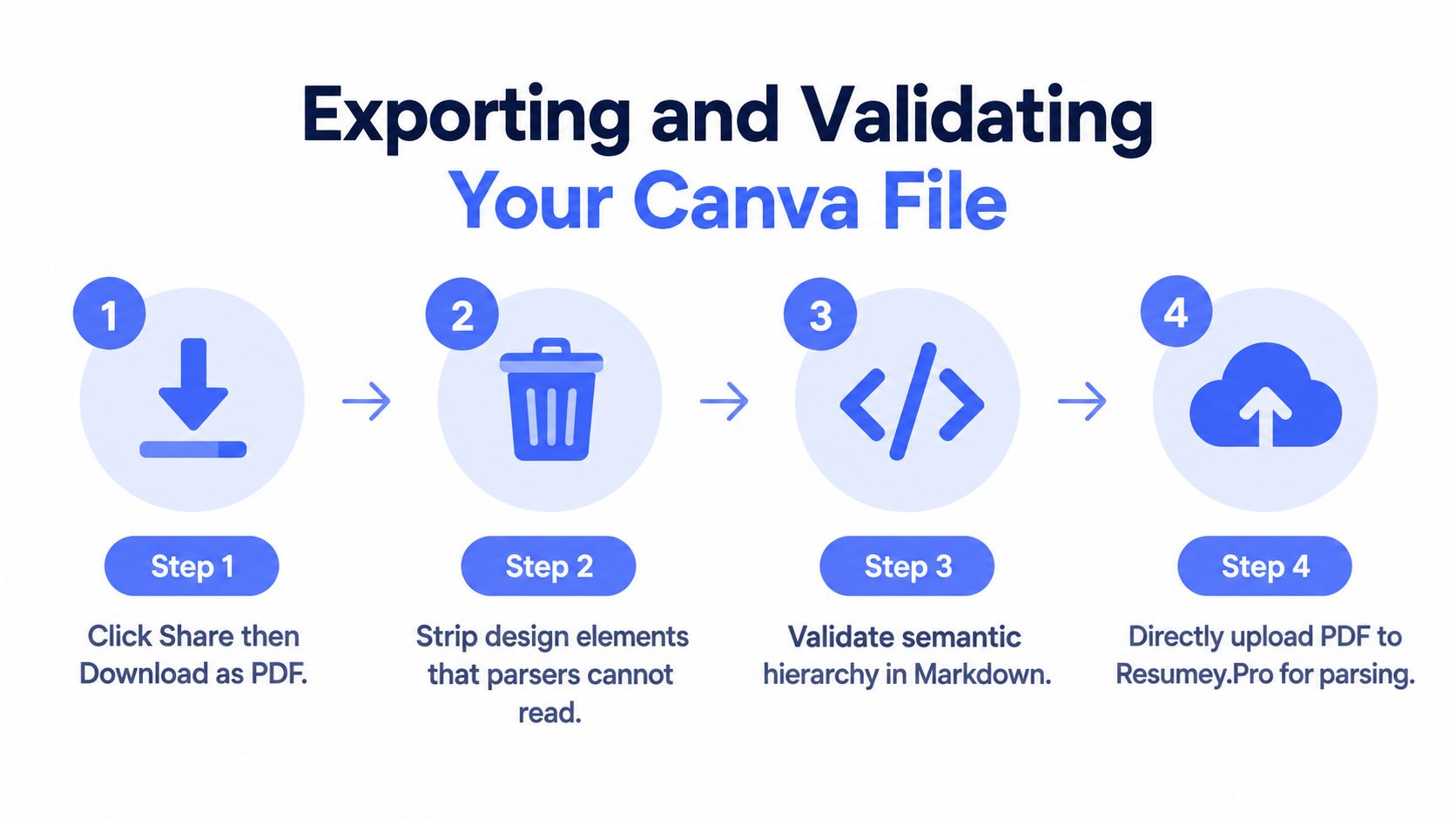
Use this extraction sequence
- Download the PDF: In Canva, use Share, then Download, and select PDF. A selectable-text PDF is preferable to a scanned or image-only file.
- Open the exported file: Use a PDF viewer that lets you select text. Select the complete resume and copy it.
- Paste into plain text: Use a plain-text editor rather than a rich document editor. This exposes the actual order, spacing, and characters available to a parser.
- Inspect the result: Check the name, contact details, headings, employment dates, bullets, and links. Look for duplicated text, missing characters, and columns that have been interleaved.
The PDF text-layer validation guidance recommends this text-select and paste test because it reveals problems before they move into another system. When the pasted text remains readable and chronological, the layout is more likely to be usable. When it scrambles, simplify the Canva source before attempting conversion.
Simplify before you normalize
Remove elements that carry appearance but no semantic value:
- Color panels: Replace them with ordinary section headings.
- Icons: Write the underlying label, such as “GitHub” or “Phone,” as text.
- Skill bars: Replace visual ratings with a written skills list.
- Text boxes: Move their content into the main document flow.
- Decorative columns: Reorder the content into one continuous sequence.
Don't use OCR as the default solution for a selectable PDF. OCR can help with an image-only file, but it adds another interpretation layer and may introduce errors in names, URLs, dates, or technical terms. Fixing the source design is usually safer than asking software to guess what the design means.
Mapping Visual Blocks to Markdown Syntax
Markdown replaces visual grouping with explicit syntax. That makes hierarchy easier to inspect because the relationship between a heading and its content exists in the text itself, not only in its position on a page.
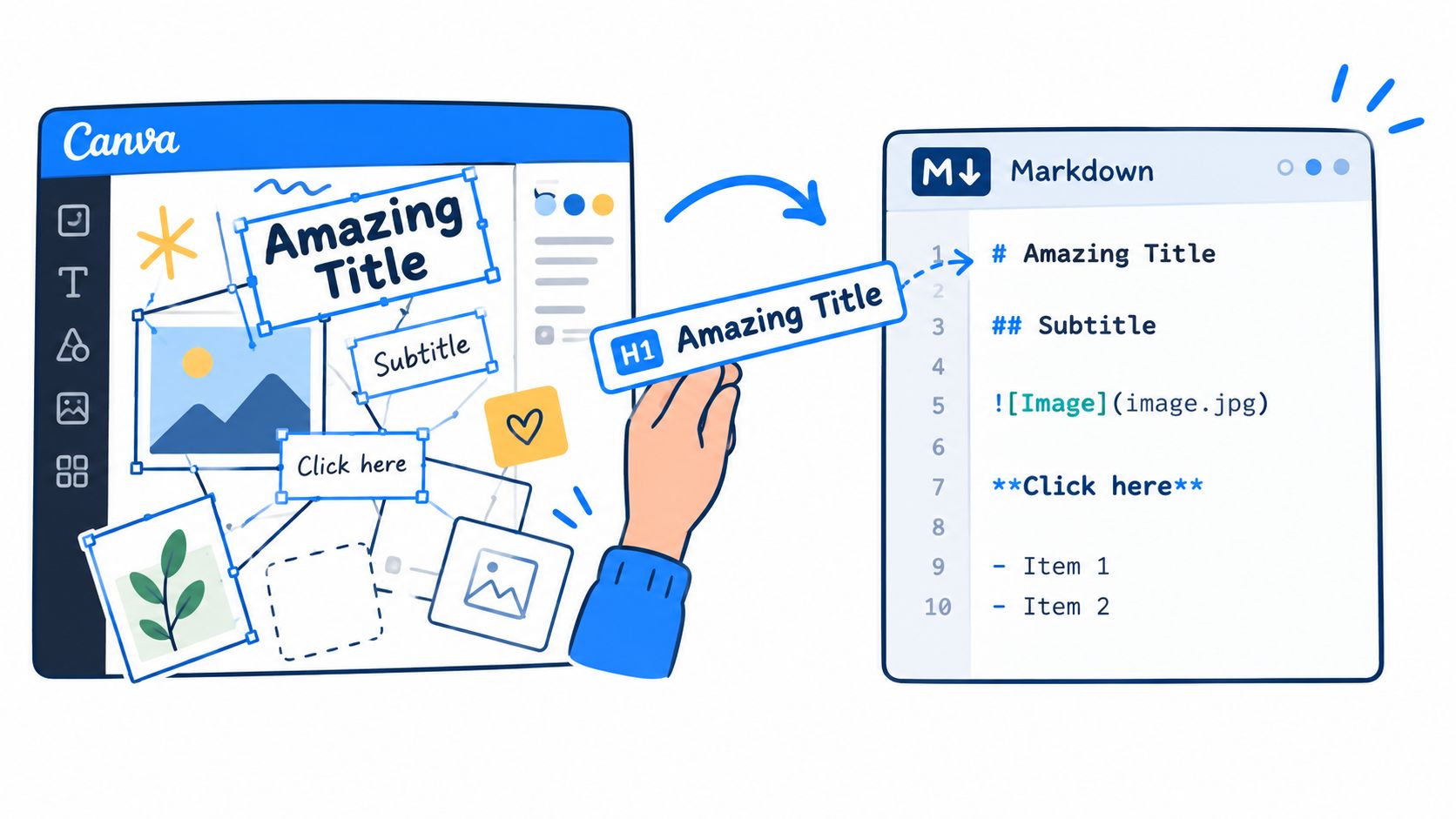
A straightforward mapping looks like this:
# Jordan Lee

jordan.lee@example.com | github.com/jordanlee | linkedin.com/in/jordanlee

## Summary

Backend engineer focused on reliable APIs, data pipelines, and platform tooling.

## Experience

### Platform Engineer, Northstar Systems

2023 to Present

- Built and maintained internal services used by product and operations teams.
- Reduced deployment friction by standardizing service configuration and release checks.
- Partnered with security and infrastructure teams to improve operational visibility.

### Software Engineer, Meridian Labs

2020 to 2023

- Developed API integrations and background jobs for a SaaS product.
- Improved test coverage around billing, authentication, and event processing.

## Skills

- Languages: Python, Go, SQL
- Infrastructure: Docker, Kubernetes, Terraform
- Cloud: AWS, monitoring, CI/CD

## Education

BSc Computer Science, Example University
Translate meaning, not appearance
Use the name as the top-level heading. Use consistent section headings such as Summary, Experience, Skills, Education, and Projects. Represent each position as a subheading, then place the employer, dates, and achievements in a predictable order.
Bold text can preserve a small amount of emphasis, but it shouldn't carry information that isn't available elsewhere. A colored label that says “Senior” should become a written title. A progress bar that implies proficiency should become a skills phrase or disappear.
Links deserve special care. Preserve the full destination in Markdown when the link matters:
GitHub | Portfolio
Avoid tables for employment history. Tables can look tidy in an editor, but they add a layout relationship that parsers may interpret inconsistently. A single-column sequence is easier to read, edit, and render into different templates.
Keep one canonical Markdown source. Treat every PDF as an output artifact that can be regenerated after an edit.
This approach also helps with multilingual resumes. The content remains separate from page decoration, so a localized version can preserve the same sections while changing language, ordering, or links for a specific market. Right-to-left scripts and non-Latin characters still require a final rendered-file check, but the underlying source is easier to audit than a collection of positioned Canva elements.
Importing Clean Text into Resumey.Pro
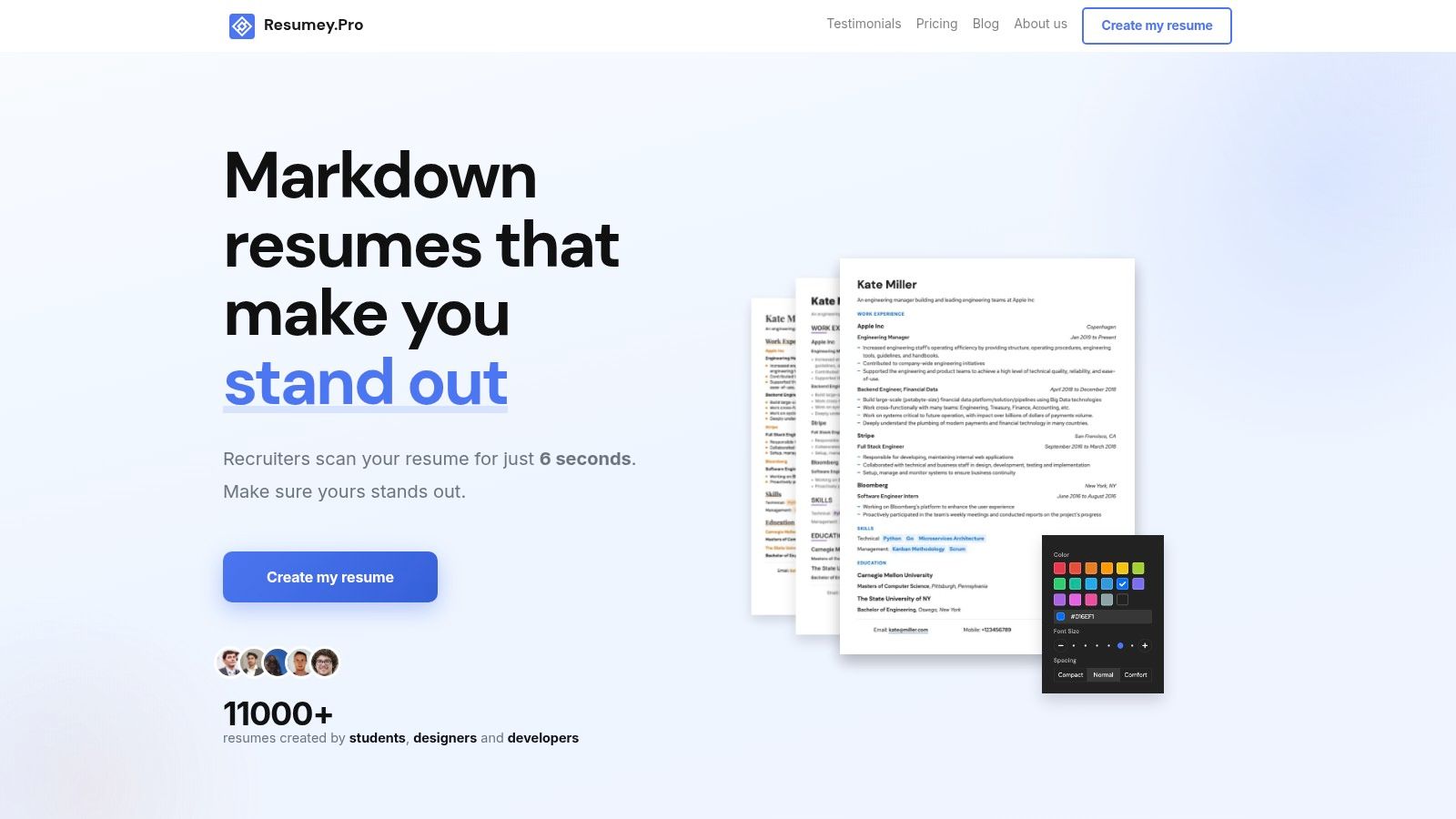
Once the PDF passes the text-selection test, the fastest route is to upload it directly to Resumey.Pro. The platform automatically converts the PDF into clean Markdown in seconds, so manual reconstruction isn't required for every resume.
The practical workflow is:
- Export from Canva: Download the resume as a PDF.
- Upload the PDF: Import it into the Resumey.Pro editor.
- Review the generated Markdown: Check headings, dates, bullets, contact details, and links.
- Remove design residue: Delete icon labels, duplicated text, decorative fragments, and any content that arrived out of order.
- Render and inspect: Choose a template, preview the document, and verify the exported PDF visually and through text selection.
The editor's Markdown CV generator keeps content separate from presentation. That separation is the useful part. A template change should affect rendering, not force a rewrite of the resume's content.
Keep versions under control
Canva makes it easy to create a visually distinct page, but maintaining several role-specific versions can become a manual layout exercise. A Markdown master changes that workflow. The core file holds the complete experience, while a cloned version can emphasize platform engineering, data work, QA, or infrastructure without disturbing the original.
For example, a developer might maintain:
- Backend version: API design, services, databases, and testing near the top.
- DevOps version: deployment, observability, infrastructure, and incident response emphasized.
- Data version: pipelines, warehousing, analysis, and data quality brought forward.
The content model remains familiar across versions. Headings stay explicit, bullets remain editable, and links can be checked in the source rather than hunted through separate text boxes.
Resumey.Pro also renders Markdown into ATS-oriented resume templates and supports PDF export. The final responsibility still belongs to the applicant. Review the generated file, test text selection, and compare the extracted order with the visible page before submitting.
Why ATS Parsers Reject Complex Layouts
An ATS generally begins by extracting text from an uploaded file. It then attempts to classify that text using patterns such as headings, dates, job titles, employers, and skills. A human can infer that a label beside a progress bar means “advanced,” but an extraction process may receive only disconnected text, an image, or an unexpected character.
The technical evidence is clear about the risk. A 2026 article citing independent ATS guidance says resumes containing tables, graphics, or images can lose 50% or more of their content during parsing, while DOCX is accepted by 100% of ATS systems and PDF by 96%. Those figures appear in the technical Canva resume guidance, and they explain why a visually rich source deserves structural validation.
A 2025 analysis of 1,000 rejected resumes reported a 4% parsing failure rate for plain-text DOCX compared with 18% for PDF files, while single-column layouts reached 93% parsing accuracy compared with 86% for two-column layouts. It also found that tables scrambled content order in 37% of cases. See the Markdown resume ATS analysis for the reported comparison.
| Layout element | Parsing result | Failure mechanism |
|---|---|---|
| Plain-text DOCX | 4% parsing failure | Linear text remains easier to extract |
| PDF file | 18% parsing failure | Text order and file construction can vary |
| Single-column layout | 93% parsing accuracy | Content follows one predictable reading path |
| Two-column layout | 86% parsing accuracy | Extraction can interleave columns |
| Tables | Content order scrambled in 37% of cases | Cells may be read separately from their visual relationships |
A single-column Markdown structure addresses the mechanism directly. It places the name, contact information, headings, dates, and bullets into one sequence, without asking the parser to reconstruct relationships from coordinates.
For additional context on the kinds of systems employers use, the NZ Apps ATS directory provides a directory of applicant tracking systems. The specific product matters less than the shared constraint: the uploaded file must expose readable text in a predictable order.
The file format still matters at submission time. MIT's resume guidance recommends DOC or DOCX, or PDF when the posting doesn't specify a format, and suggests saving the resume as plain text to inspect what an ATS may read. Workable's explanation of ATS parsing similarly emphasizes text extraction and warns against image-based PDFs.
Frequently Asked Questions
Can Markdown handle multilingual resumes and right-to-left scripts?
Markdown can store multilingual content without relying on positioned text boxes. The rendered output still needs checking for font support, line direction, punctuation, and links, especially for right-to-left or non-Latin scripts. Keep one structured source, then review each localized PDF before submitting it.
How should GitHub and portfolio links be preserved?
Write links as readable Markdown links with descriptive labels and complete destinations. After rendering, select and copy the PDF text to confirm that the labels and URLs remain available. Don't rely on an icon alone to communicate a link.
What should happen to Canva infographics?
Translate their meaning into text when it represents professional evidence. Replace a visual skill meter with a written skills list, and replace a process graphic with a concise achievement or project description. Decorative illustrations should be removed rather than approximated.
Can the original Canva layout be reproduced exactly?
A Markdown workflow deliberately gives up pixel-level control. It preserves semantic hierarchy through headings, lists, and consistent ordering, while the renderer controls spacing and typography. That trade-off produces a more portable source and makes role-specific edits less fragile.
Should the Canva PDF be uploaded directly or converted manually first?
A direct PDF upload is the practical first step when the file has a clean, selectable text layer. Automatic conversion can create the initial Markdown structure, but the result still needs a human review for column order, bullets, dates, links, and design fragments.
Resumey.Pro lets you upload an existing Canva PDF, convert it into clean Markdown, switch among ATS-oriented templates, and clone versions for different roles. Visit Resumey.Pro to move your resume from a design-first file into a structured source you can edit and export reliably.